
Get started
1. Install the CLI
Install the cubic CLI for your operating system.- macOS and Linux
- Windows
2. Sign in
Open a terminal in your Git repository and run:cubic auth login. If authentication fails, press Ctrl+L in the
CLI to log out and sign in again.
For CI and cloud agents, where no browser is available, use a personal API key instead. See
Run in CI and cloud agents.
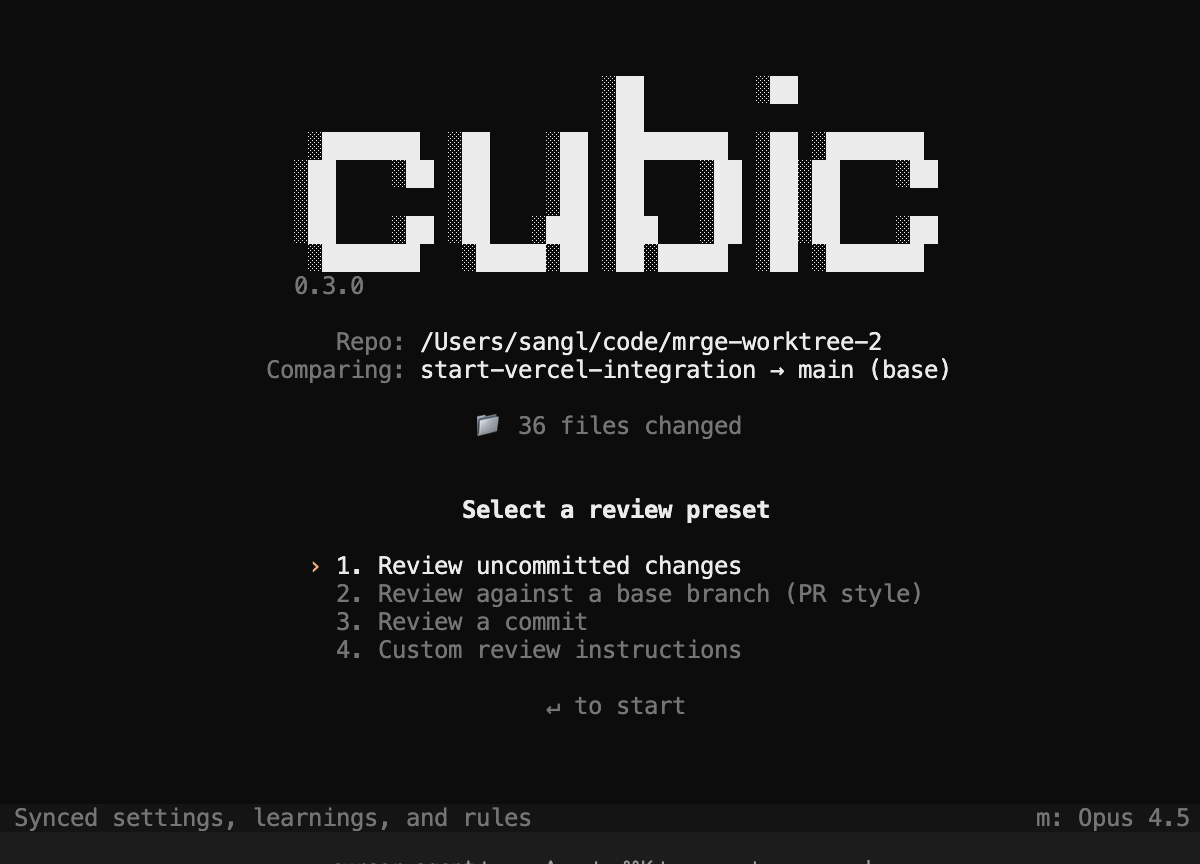
3. Run your first review
From your repository, run this command in your terminal to review uncommitted changes:cubic review --base main, replacing main with your base branch.
4. Use the findings
The CLI groups findings by priority. Fix the issues yourself or give the generated prompt to your coding agent. Review the fixes, then run the review again to check them before you push. After pushing, check cubic’s GitHub review for additional findings.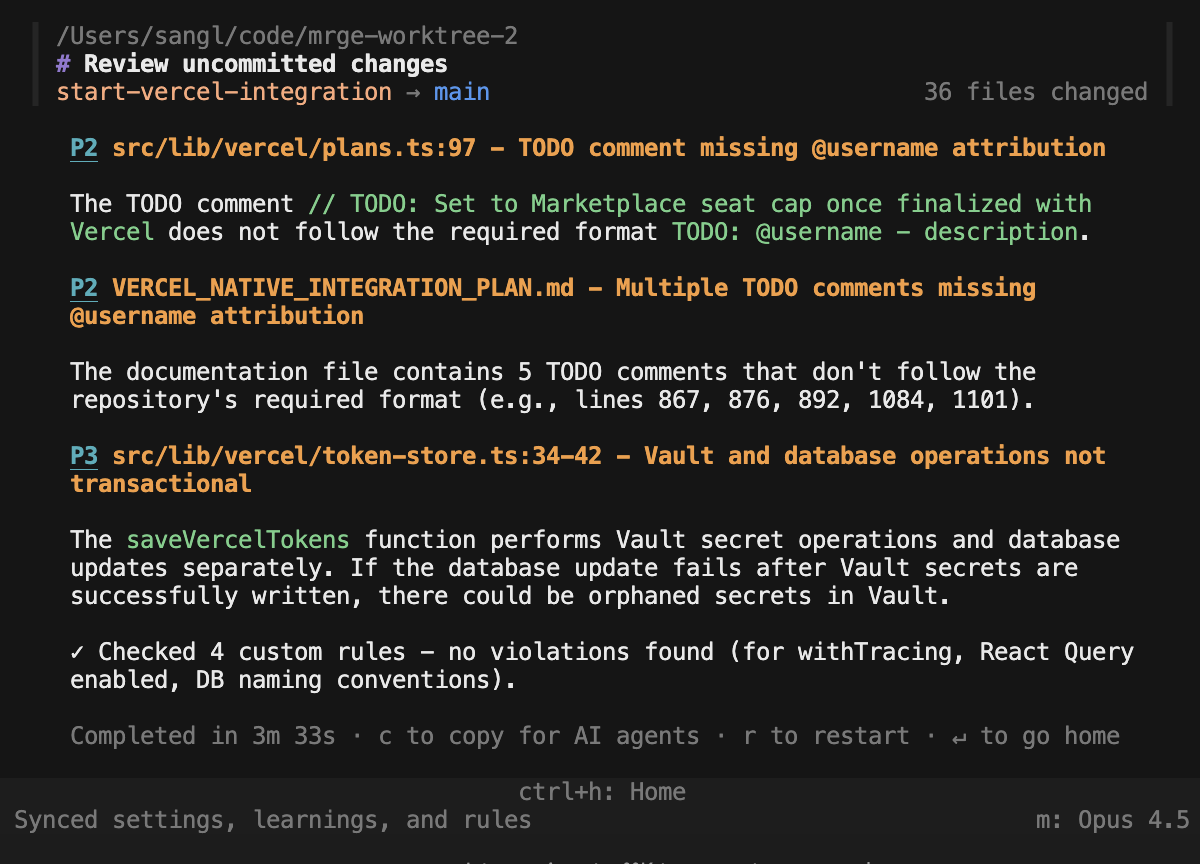
origin remote, reading
cubic.yaml and linked instruction files from its default branch. Headless reviews (--json,
--output-format, and CI runs) load this context in cubic CLI v1.14 or later. To see what a
review loaded, check its repository context.
CLI reviews don’t change the usage counts on the Learnings page, which count pull request reviews.
CLI usage appears in your analytics dashboard as CLI sessions.
Bring your coding subscription
Connect your existing ChatGPT Plus/Pro or Claude Code subscription to use its models for local reviews. This is optional: cubic handles inference when you use the included model.- ChatGPT (Codex)
- Claude Code
Connect your ChatGPT account to use Codex models with your existing plan:Sign in through the browser, then choose a Codex model in the CLI.
Ctrl+P to choose a connected provider, then press m to choose a model.
You can switch without signing in again.
Run cubic auth logout to disconnect a provider. Disconnecting Claude Code from cubic does
not sign you out of Claude Code.
Review with your coding agent
Connect cubic to your IDE and install the skills, then ask your coding agent to “review my code” to run a local review. To include local review in your agent’s workflow, add this toAGENTS.md, CLAUDE.md, or
.cursorrules:
Command reference
Runcubic review without options to review uncommitted changes.
Omit the branch from
--base to detect it automatically. Combine --base with --prompt to add
instructions to a branch review, for example cubic review --base main --prompt "Focus on the payment changes".
--commit can’t be combined with --base or --prompt. Use --output-format text, json, or
stream-json to select an output format explicitly; --json is shorthand for --output-format json.
Output formats
The default text output shows human-readable findings with colored priority labels.JSON
JSON
Run
cubic review --json when an integration needs one JSON object after the review finishes.
The object contains the issues array and a repository_context object that lists the custom
agents and learnings the review used.Streaming JSON
Streaming JSON
Run
cubic review --output-format stream-json when an agent, CI job, or integration needs progress
before the review finishes. The command writes compact NDJSON events to stdout, including finding
updates, retries, heartbeats, and a final review.completed or review.failed event. The
review.started event includes the review’s repository_context.Run in CI and cloud agents
The CLI normally signs in through your browser. In CI and cloud agents there is no browser, so authenticate with a personal API key instead. Requires cubic CLI v1.12 or later. API keys are personal and grant the same access as your account, so each team member uses their own key. Reviews require a seat on an active subscription.1
Generate an API key
Open Settings > Integrations > cubic CLI
and click Generate API key. Copy the key: it starts with
cbk_ and cubic shows the full
value only once.This is the same personal key the MCP server uses.
Regenerating or revoking it replaces the key for your MCP clients and CI at the same time.
2
Store the key as a secret
Add the key to your CI or cloud environment as a secret named
CUBIC_API_KEY. When the
variable is set, the CLI uses it and skips the browser sign-in.3
Run the review
--output-format stream-json instead of --json when the job needs progress events
before the review finishes. cubic review exits with code 1 when it reports findings, so a
CI step fails on findings; append || true to publish them without failing the job.- Cursor cloud agents
- Claude Code cloud
- Shell
-
In the Cursor dashboard, open the Secrets tab for your cloud agent environment and add
CUBIC_API_KEY. -
Install the CLI in the environment’s install command in
.cursor/environment.json: -
The agent, or you over the VM shell, can then run
cubic review --json.
Recommended environment variables for headless runs:
CUBIC_DISABLE_AUTOUPDATE=1skips the npm registry version check and the binary download from cubic’s release storage.CUBIC_DISABLE_LSP_DOWNLOAD=1skips downloading language servers from GitHub.CUBIC_DISABLE_GIT_AI=trueat install time skips the git-ai installer, which downloads from GitHub releases and starts a background daemon on the runner.
Check what a review used
Every headless review reports the repository context it loaded. Requires cubic CLI v1.14 or later. With--json, read the repository_context field:
custom_agents lists the enabled custom agents the review loaded, and learnings counts the
learnings it loaded. warnings appears when cubic reports a configuration problem, such as a linked
instruction file that exceeds the 10,000 character limit. If the context could not be loaded,
status is unavailable and reason says why, for example when the repository is not connected
to cubic or the key’s owner has no seat for it. The review still runs without the context.
In text output, the CLI prints the same summary to stderr before the review starts:
Revocation and limits
Revoke or regenerate the key from the same settings page. CI jobs that use a revoked key stop immediately. API key traffic is rate limited per user: 300 requests per 15 minutes for session, config, and settings calls, and 2,000 requests per 15 minutes for model calls. This comfortably covers a few parallel CI jobs.Advanced settings
How do automatic updates work?
How do automatic updates work?
The CLI checks for a newer version in the background whenever you run a command. When an update is
available, the CLI installs it before running the command.Run
cubic upgrade to update immediately, or cubic upgrade <version> to install a specific
version.How do I disable automatic updates?
How do I disable automatic updates?
Add Set This environment variable is useful in CI, on machines without outbound internet, or when you
need to pin a version.
disable_auto_updates to ~/.config/cubic/config.json to receive update notifications without
installing them automatically:CUBIC_DISABLE_AUTOUPDATE=1 to skip both the update check and automatic installation:How do I control AI attribution tracking?
How do I control AI attribution tracking?
The CLI installs git-ai to tag AI-assisted commits with git notes. These
notes power the AI coding analytics dashboard. Attribution tracking is
enabled by default, and git-ai shows an AI-versus-human authorship summary after each commit.Set Manage tracking after installation with
CUBIC_DISABLE_GIT_AI during installation to skip git-ai:- macOS and Linux
- Windows PowerShell
- Windows Command Prompt
cubic stats:cubic stats disable removes git-ai hooks and preserves your preference during future upgrades.
cubic stats enable reinstalls git-ai and clears the opt-out preference.Limitations
CLI usage is unlimited during alpha, subject to rate limits that ensure fair access.- API key requests are rate limited per user; see Revocation and limits. Spread larger CI fleets across team members’ own keys.