
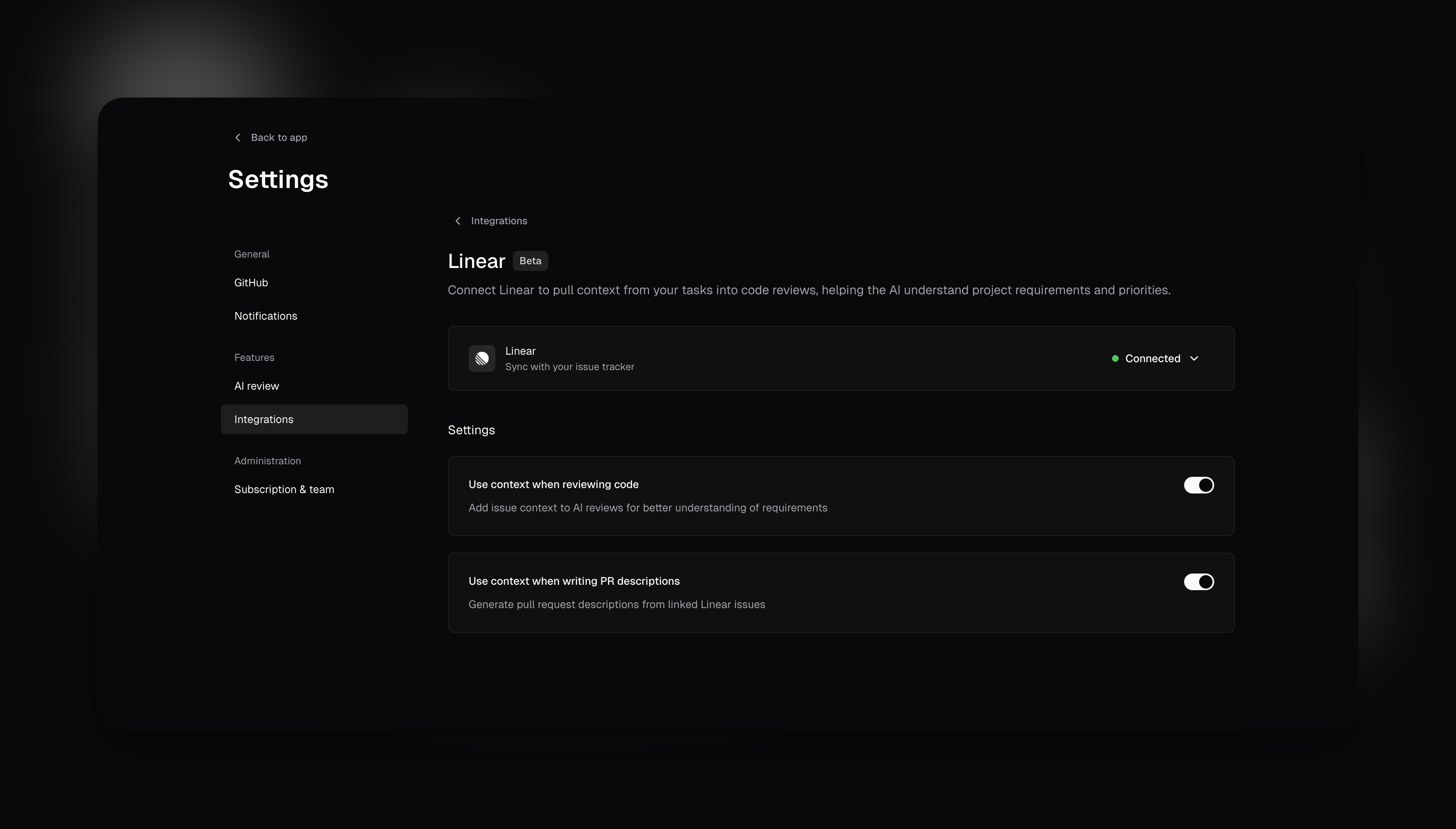
Setup
Connect Linear
- Navigate to integration settings.
- Follow the instructions to connect your Linear workspace.
Configure AI behavior
Toggle these options based on your workflow:- Use context when reviewing code - AI reviews check if code matches issue requirements
- Show linked issue analysis in reviews - Post acceptance criteria assessment in PR review comments. When disabled, issue context still improves AI review quality but is not shown publicly. Requires “Use context when reviewing code” to be enabled
- Use context when writing PR descriptions - Generate descriptions from linked Linear issues
How it works
cubic finds Linear issues by looking for issue IDs in your PR title or description. The format looks likeABC-123 where ABC is your team key.
Include the Linear ID in your PR title ([LIN-123] Add rate limiting) or description for cubic to pull in issue context.
Once connected, you can also manually link Linear issues directly in the cubic PR interface.
Best practices
- Write clear acceptance criteria in Linear for better AI feedback
- Use bullet points or numbered lists for requirements to enable automatic issue analysis
- Include specific, testable criteria that cubic can verify in your code changes
- Create custom agents that reference Linear context for specific checks